2.7 Creating ‘Project’ templates
Researchers can use RStudio’s ‘Projects’ can facilitate collecting research files in a single, structured directory, with the added benefit of easy use of version control. Researchers can gain even more benefits by consistently structuring all their ‘Project’ directories. We will demonstrate how to implement structured project directories through RStudio, as well as how RStudio enables the creation of a ‘Project’ for initializing consistently-structured directories for all of a research group’s projects.
Objectives. After this module, the trainee will be able to:
- Be able to create a structured
Projectdirectory within RStudio - Understand how RStudio can be used to create ‘Project’ templates
The last module describe the advantages of organizing all the files for a research project within a single file directory, as well as the added advantages of making that file directory an RStudio “Project.” In this module, we’ll walk through the steps required to do that, as well as how to navigate and use the “Project” structure and functionality to make it easier to integrate project files, code, and final output like reports and presentation slides. If you have created a standardized file directory structure that you will use as a starting point for all of your research projects, then it can save time to create an RStudio Project Template with this structure. This way, you can set up a new directory, including all the subdirectories you want to use and any code or report templates that might be useful, by just opening a new project with this template through RStudio.
2.7.1 Making an existing file directory an RStudio Project
It’s very easy to turn an existing file directory into an RStudio Project. Open RStudio, and then in its menu go to “File” and then “New Project.” This will open a pop-up window with several options, including the option to create a new RStudio Project from an existing directory. Choose this option, and then in the window that is opened, navigate through your file directories to the directory with your project files.
This will create a new RStudio Project with the same name as the file directory name of the directory you selected [check this]. Once you have created the directory, RStudio will automatically move you into that Project. When you close RStudio and reopen it, it will automatically open in the last Project you had open. There is a small tab in the top right hand corner of the RStudio window that lists the project you are currently in. To move to a different Project, you can click on the down arrow beside this project name. There will be a list of your most recent projects, as well as options to open any Project on your computer. If you want to work in RStudio, but not in any of the Projects, you can choose to “Close Project.”
When you are working in an RStudio Project, RStudio will automatically move your working directory to be the top-level directory of the Project directory. This makes it easy to write code that uses this directory as the presumed working directory, using relative file paths to identify and files within the directory. For example … . Now if you share the project directory with someone else, they can similarly open the RStudio Project in their own version of RStudio, and all the relative pathnames to files should work on their system without any problems. This feature helps make code in an RStudio Project directory reproducible across different people’s computers.
The RStudio Project environment has some other features, as well, that may be useful for some projects. For example, if you are tracking the project directory under the git version control system, then when you open the RStudio Project, there will be a special tab in one of the panes to help in using git with the project. This tab provides a visual interface for you to commit changes you’ve made, so they are tracked and can be reversed if needed, and also so you can easily push and pull these committed changes to and from a remote repository, like a GitHub repository, if you are collaborating with others.
For certain types of projects, you may also want to include a “Makefile.” [More
about Makefiles]. If you add this to an RStudio Project, you will get a new
“Build” tab that allows you to run the Makefile for the project with the click of
a button. For some more complex RStudio Projects, like projects that use RMarkdown
to create online books or websites using bookdown and blogdown, this “Build”
pane will allow you to render the whole book.
2.7.2 Making an RStudio Project Template
If you have created a template directory for research projects for your group, you can create an RStudio Project template to make it easy to set up a new project directory every time you start a project. At its most basic, this can be a directory that includes the subdirectories (with standardized names for each subdirectory) that you want to include—for example, you may know that you will always want the project directory to include subdirectories for “raw_data” (with its own subdirectories for different types of data, for example for “cfus” and “flow”), “data” (with clean versions of the data, after conducting and needed preprocessing, like calculating CFUs in a sample based on data from plating at different dilutions, or the output from gating flow cytometry data), “reports” (for writing, posters, and presentation slides), and “R” (for common scripts that you use for preprocessing, visualization, and data analysis).
As you progress, you may also want to add templates that serve as a starting point for files within this project. For example, if you always want to collect observed data in a standard way, you could create a template for data collection, for example as a CSV file. Each researcher in your lab could copy and rename this file each time they collect a new set of data—by ensuring a common structure when collecting the data, including file format, column names, and so on, you can build code scripts that will work on data collected for all your experiments. You may also have some standard reports that you want to create with types of data you commonly collect, and so you could include templates for those reports in your R Project template. Again, these can be copied and adapted within the project—the template serves as a starting point so you don’t have to start with a blank slate with every project, but it is not restrictive and can be adapted to each project as you work on that project.
[How to create a template]
You can have different templates to use when you create a new project. A template will provide a basic set-up for the project. For example, R packages are created within a directory, and package developers now often use an R Project for that directory. Since R packages have a consistent set of usual subdirectories—including subdirectories for R code, data, and documentation and a file for metadata—there is now a Project Template specificially for R package development, and this sets up a directory with some of the typical subdirectories and files needed for these projects.
You may find, similarly, that there are typical structures and files that your research laboratory includes in the R Projects it creates for research projects. In this case, someone in your lab can create an R Project template that can be used each time a new project is initialized for the lab. This will help create consistency across projects in the directory structure, which can facilitate the use and re-use of automated tools like code scripts across different experiments.
When you create a new project in R, you will have the option to use any of the available project templates currently downloaded to your copy of R (“RStudio Project Templates” 2021). To create a new project, go to the “File” menu in the top menu bar in RStudio, and then choose “New Project.” This will open a pop-up box like the one shown in Figure 2.4.
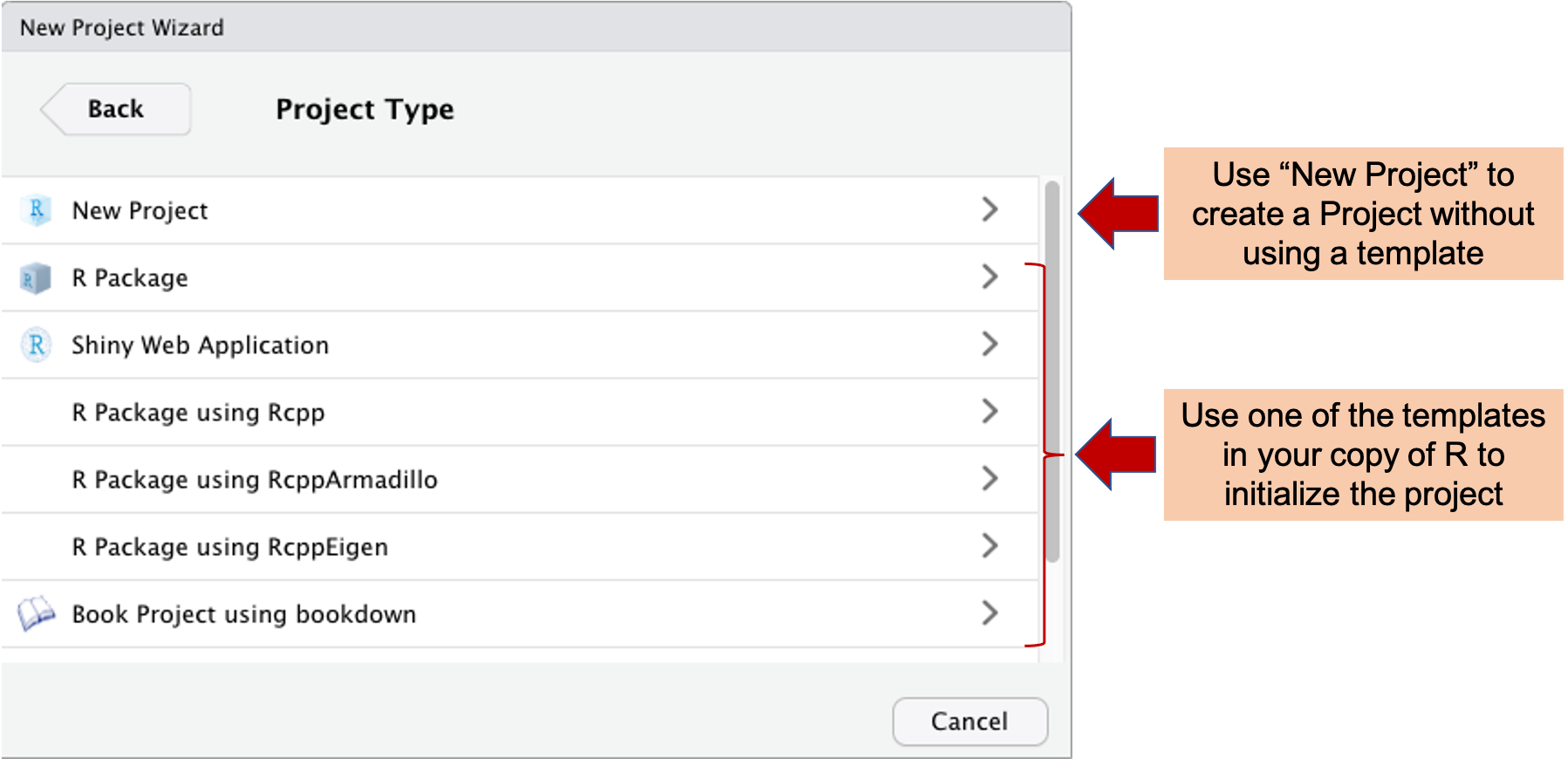
Figure 2.4: Creating a new project in RStudio. When you chose ‘File’ then ‘New Project’ from the RStudio menu, it opens the New Project Wizard shown here. You have the option to create a new project that is not based on a project template by selecting ‘New Project.’ You also have the chance to create a project using a template by selecting one of the templates. The listed templates will depend on which packages you have downloaded for your copy of R. For example, here the bookdown package has been installed for the local copy of R, and so a template is available for ‘Book Project using bookdown.’
This pop-up contains the New Project Wizard in RStudio. Here, you can either
create a new Project without using a template (click on “New Project”) or you
can create a Project starting from a template. The templates available in your
copy of R will be listed below the “New Project” listing. Depending on which
packages you’ve installed for your copy of R, you will have different choices of
project templates available, as project templates tend to be created and shared
within R packages (“RStudio Project Templates” 2021). In the example shown in
Figure 2.4, for example, one of the template options is
for a “Book Project using bookdown,” available because the bookdown R package
has been installed locally.
Your research group can create your own Project templates. You will need to create them within an R package, but this package does not need to be posted to a public site like CRAN. Instead, it can be shared exclusively among the research group as a zipped file that can be installed directly from source onto each person’s computer. Alternatively, you can post the package code as a GitHub repository, and there are straightforward tools for installing R package code from GitHub onto each team member’s computer. RStudio has provided a detailed guide to creating your own project template at https://rstudio.github.io/rstudio-extensions/rstudio_project_templates.html. This topic has also been discussed through a short talk at the yearly RStudio::conf: https://rstudio.com/resources/rstudioconf-2020/rproject-templates-to-automate-and-standardize-your-workflow/.
“RStudio v1.1 introduces support for custom, user-defined project templates. Project templates can be used to create new projects with a pre-specified structure.” (“RStudio Project Templates” 2021)
“R packages are the primary vehicle through which RStudio project templates are distributed. Package authors can provide a small bit of metadata describing the template functions available in their package—RStudio will discover these project templates on start up, and make them available in the New Project… dialog.” (“RStudio Project Templates” 2021)
“R experts keep all the files associated with a project together—input data, R scripts, analytical results, figures. This is such a wise and common practice that RStudio has built-in support for this via projects.” (Wickham and Grolemund 2016)